What is the item display?
The item display gives you a clear, structured view of the items stored within an asset (such as a stockpile or network). Items are grouped into categories, helping you quickly understand what resources you have, how much is available, and where potential shortages or surpluses may appear.
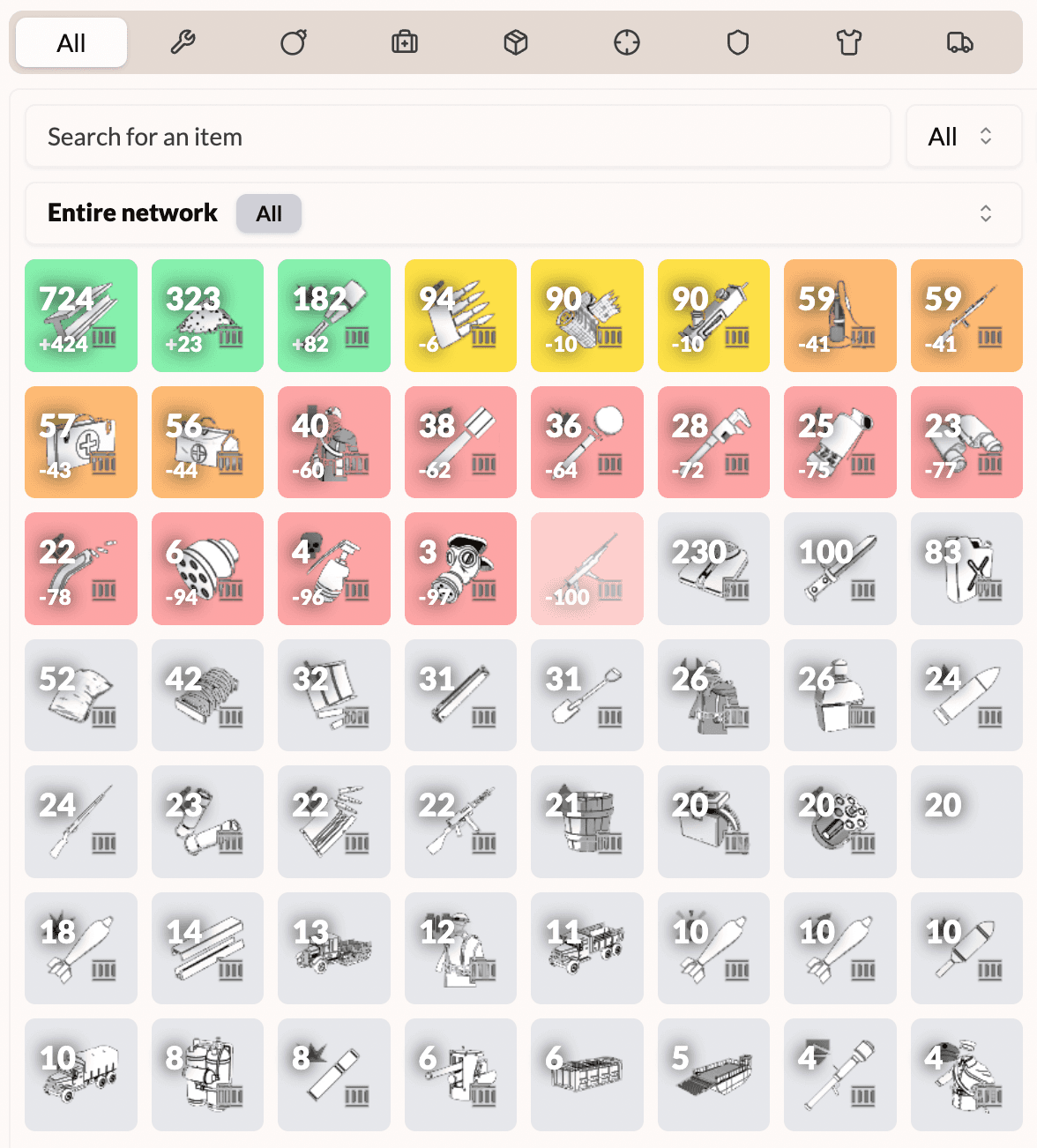
You can see a screenshot of the item display below.
How to use the item display?
This guide uses a hub network as the example, but most stockpiles and networks share the same general interface and behaviour.
The top navigation bar
At the top of the item display, a navigation bar allows you to switch between item categories. Each category is represented by both a label and a small icon to help you quickly recognise the type of items it contains.
Below is an overview of the categories and the meaning behind their icons:
- Utility (wrench icon): Symbolising tools, equipment, and general-purpose items.
- Heavy Ammo (bomb icon): Indicating explosive or heavy-calibre ammunition.
- Medical (medical bag icon): Used for bandages, medical kits, and health-related supplies.
- Supplies (package icon): Referring to construction materials and general supply items.
- Small Arms (crosshair icon): Symbolising rifles, pistols, and light weaponry.
- Heavy Arms (shield icon): Representing heavy weapons and armaments.
- Uniforms (shirt icon): Signalling clothing, uniforms, and wearable gear.
Switching between categories filters the displayed items, allowing you to focus on specific types of resources depending on your operational needs.
FoxStock’s categories and icons match Foxhole’s internal item classifications, providing a consistent and intuitive browsing experience.
The search bar
Below the category navigation bar, you’ll find a search input that lets you quickly filter items by name. This is especially useful in large networks or stockpiles that contain dozens (or hundreds) of different items.
Simply type part of an item’s name, and the display will instantly narrow down the list.
The dropdown selector
Below the search bar, you’ll see a selector that allows you to choose where the displayed items are coming from. Common options include:
- Entire network: Shows aggregated quantities across all stockpiles in the network
- Individual stockpiles: Lets you drill down into specific storage locations
- Individual networks: Lets you view items from specific sub-networks
This gives you flexibility depending on whether you want a high-level overview or a detailed breakdown.
Item tiles
Each item in the display appears as a tile, which presents all essential information in a compact visual format. A tile typically includes:
- The current quantity, shown prominently on the top left,
- A coloured background, indicating the health of the item based on the current quantity and target levels,
- A target delta, showing how far the current amount is above or below the target for that item.
- A small crate icon, if the item is crated or not (when absent)
Colour indicators
Each tile is colour-coded to reflect the item’s health status based on its current quantity relative to its target levels. The colours used are:
- Green: The item is well above its target level.
- Yellow: The item is slightly below or at its target level.
- Orange: The item is below its target level and may require attention.
- Red: The item is significantly below its target level and needs urgent restocking.
- Grey: No target is set for this item.
Quantity and target delta
Each tile displays a large current quantity (e.g., 724) and, beneath it, a smaller delta value (e.g., +424, -78).
For example:
+424means you have 424 more than the target-78means you are 78 below the expected target- A blank delta or grey tile means no target is set for that item
Items are sorted by priority Items with targets are shown first, within that group, items needing attention (large negative deltas) appear first. Items without targets appear last, grouped in neutral grey from the highest quantity.
Example
In the screenshot:
- The first few items (green tiles) are over target or close to optimal supply levels.
- The middle rows (below, orange and red tiles) show items below desired target levels: Requiring resupply.
- Grey tiles at the bottom display items without targets): Sorted simply by quantity.